 Open full size
 Open full size
Why defaults belong at the start
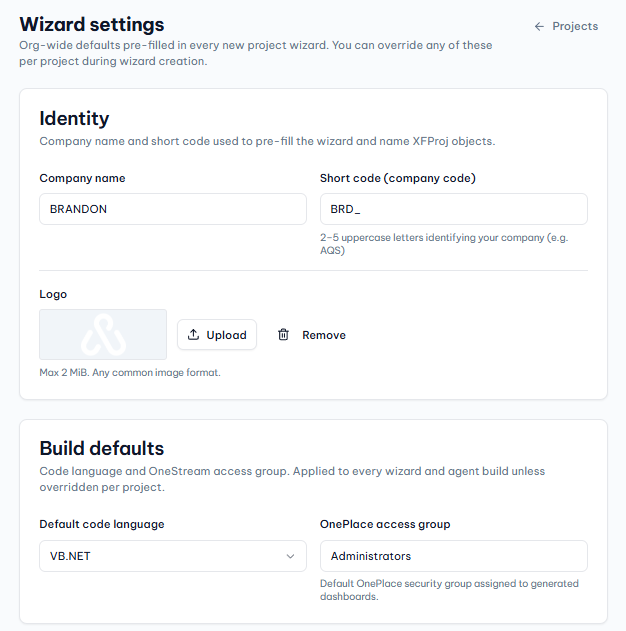
Names, company codes, rules language, and access groups tend to recur across a OneStream solution. Capturing them at project creation gives generated artifacts a consistent foundation and avoids revisiting the same setup choices in every file.
Dashboard layout and brand controls
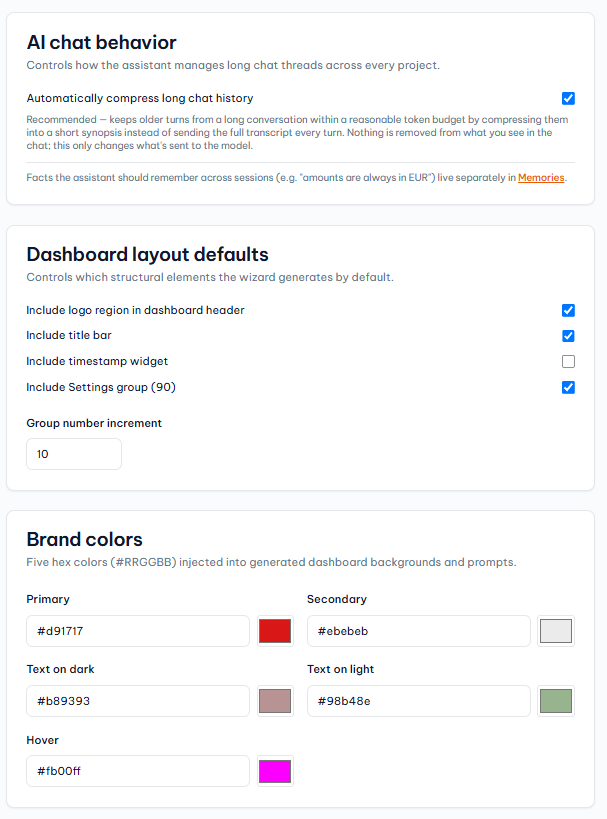
The wizard can carry dashboard structure preferences into a build: logo region, title bar, timestamp, settings area, group numbering, and brand colors. Those defaults are not decoration only; they make an output closer to the team's established dashboard conventions from the first review.
From wizard to reviewed project
After project setup, use PLAN for a reviewable outline and file proposal before applying changes. That keeps the requirements visible and makes it easier to refine the solution before a larger XFProj package is assembled.
Looking for a specific workflow? Return to the OneStream resources hub to browse related practical guides.
Related resources
Ready to build this in OneCraft?
Describe what you need in plain English — OneCraft drafts and validates the OneStream files for you.